
Declutter your phone in 15 minutes
Simple steps to turn your smartphone from a distraction machine into a helpful tool. We cover notification settings, app organization, and home screen layout.
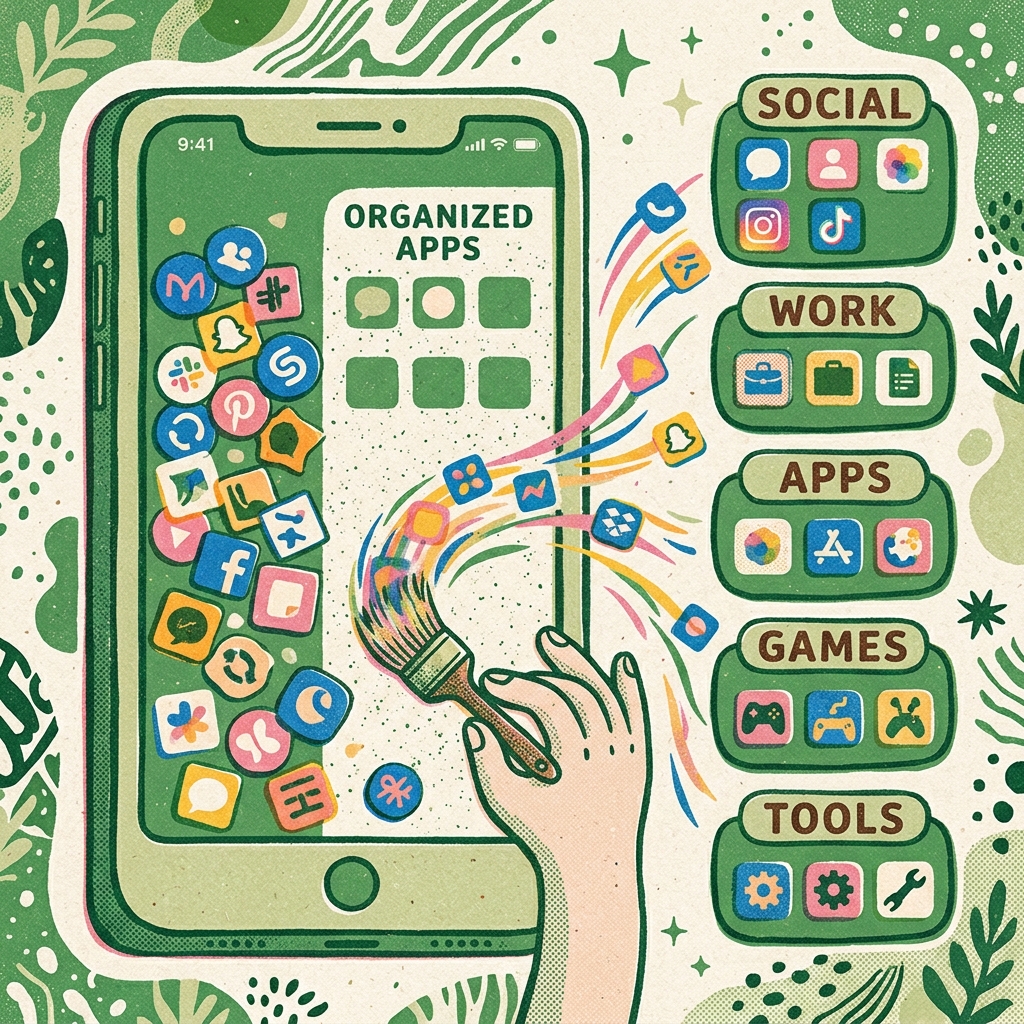
Step-by-Step Guide
Audit notifications (5 minutes)
Go to Settings -> Notifications. Turn off notifications entirely for news, shopping, and game apps. For email and messaging, choose 'Deliver Quietly' or turn off badges.
The 8-app home screen rule (5 minutes)
Remove everything from your home screen except 8 utility apps (e.g., Phone, Maps, Calendar, Notes, Camera). Move everything else to the App Library or next page.
Delete or archive unused apps (5 minutes)
Scroll through your pages and delete any app you haven't opened in the last 30 days. If you need it later, you can redownload it in seconds.
Frequently Asked Questions
How do I resist the urge to click red notification badges?
Turn them off! Red is a high-stimulus color that triggers a subconscious urge to clear it. Removing badges under notification settings stops this urge instantly.
Should I delete work apps like Slack or Teams?
If possible, yes, or at least set strict schedule limits. If you must keep them, use 'Do Not Disturb' schedules so work notifications pause automatically after 6:00 PM.